



You open a PDF to check its properties, and suddenly you see more than just the title. There is an author name, a software version that created the file, exact timestamps down to the second, and sometimes even hidden keywords or internal system IDs. This data lives inside a structure called the PDF Info dictionary, which is a legacy metadata container defined in the original PDF specification that stores basic document-level information like Title, Author, Creator, and Producer. It has been part of the PDF format since Adobe released the first version in 1993, long before modern privacy concerns existed.
The idea that every PDF carries this dictionary is a common misconception. While it is standard for older documents and many office-generated files, the ISO 32000 specifications actually define the Info dictionary as optional. Many modern PDFs generated by web services or specialized tools skip it entirely, relying instead on newer systems. However, if your file does contain one, it is often leaking personal details, software versions, and workflow identifiers you didn't intend to share.
The Anatomy of the Info Dictionary
To understand what is hiding in your files, you need to look at how the PDF structure works. The PDF file is not just a flat image; it is a collection of objects. The Info dictionary is a specific type of object-a simple key-value pair list-attached to the file's trailer section. Think of the trailer as the index at the back of a book that points to where things are located. In the trailer, an entry labeled `/Info` points to the actual dictionary object containing the metadata.
Inside this dictionary, you will find standardized keys. These are not random strings; they follow rules set by Adobe and later the International Organization for Standardization (ISO). Here is what you typically find:
- /Title: The document's title. If missing, many readers simply use the filename, but the field itself can hold a completely different string.
- /Author: The name of the person who created the content. This is often pulled directly from your operating system username or word processor profile.
- /Subject: A brief description of the document's purpose.
- /Keywords: A list of tags, usually separated by commas or semicolons, used for searching within corporate archives.
- /Creator: The application that originally made the document, such as "Microsoft Word" or "Adobe InDesign."
- /Producer: The software library that converted the file into PDF format, like "Adobe PDF Library" or "LibreOffice."
- /CreationDate and /ModDate: Precise timestamps showing when the PDF was first generated and last modified.
- /Trapped: A technical flag for printing workflows, indicating whether color trapping has been applied.
These fields seem harmless enough, but they tell a story about your digital habits. The `/Creator` and `/Producer` fields alone can reveal the exact version of software you are using, which might expose your organization to security vulnerabilities if those versions have known exploits.
Why Your PDF Has Two Metadata Stores
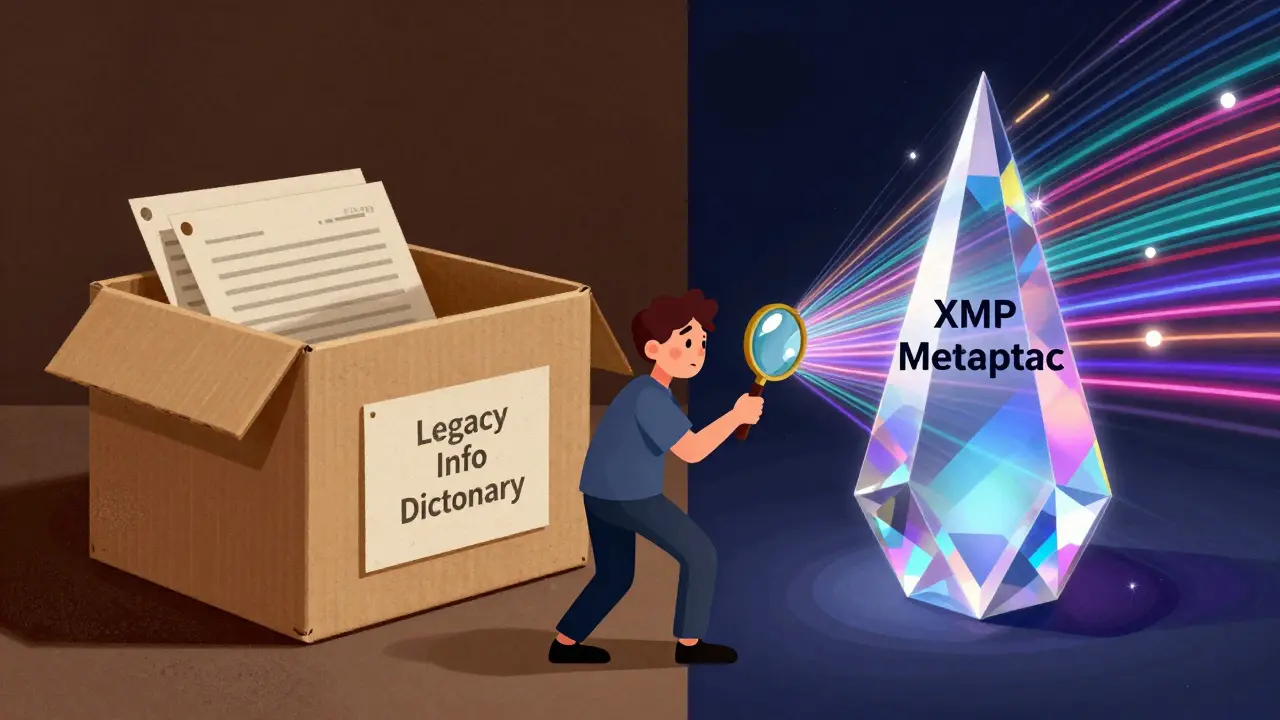
If you think the Info dictionary is the only place metadata hides, you are looking at half the picture. Around 2001, with the release of PDF 1.4, Adobe introduced a new system called XMP metadata, which is an XML-based metadata platform embedded in the PDF Catalog that supports rich, structured data including namespaces and complex relationships. XMP stands for Extensible Metadata Platform. It is far more powerful than the old Info dictionary because it uses XML and RDF formats, allowing for multilingual titles, multiple authors, rights management statements, and custom schemas.
Here is the problem: most PDFs today contain both. The Info dictionary sits in the trailer for backward compatibility with older viewers, while the XMP stream sits in the document catalog for modern applications. They are supposed to mirror each other, but they often drift apart. You might edit the title in a modern editor, updating the XMP stream, but forget to update the Info dictionary. Or vice versa.
This duplication creates a nightmare for anyone trying to clean their files. If you use a basic tool that only strips the Info dictionary, the XMP stream remains intact, still holding your name, email address, and creation date. Conversely, wiping only the XMP leaves the older Info dictionary exposed. To truly sanitize a PDF, you must address both layers simultaneously.
| Feature | Info Dictionary | XMP Metadata Stream |
|---|---|---|
| Origin | PDF 1.0 (1993) | PDF 1.4 (2001) |
| Format | Simple Key-Value Pairs | XML/RDF |
| Location | File Trailer | Document Catalog (/Metadata) |
| Complexity | Flat strings only | Structured, nested, namespaced |
| Status | Legacy (Optional) | Current Standard |
| Privacy Risk | High (often overlooked) | High (richer data) |
The Privacy Risks of Unchecked Metadata
Why should you care about these invisible dictionaries? Because they leak context. When you send a contract, a resume, or a public report, you want the recipient to focus on the visible content. But metadata provides forensic clues. A `/Creator` field might reveal that you drafted a sensitive legal document on a company laptop using a specific internal template. The `/Author` field might contain your full real name, even if you signed the document as "Anonymous" or used a pseudonym in the text.
Consider the scenario of a whistleblower or a journalist submitting documents to a secure drop. If the PDF retains its original metadata, it can be traced back to the source machine, the software environment, and the time of creation. Even in less dramatic cases, like job applications, a resume PDF might retain metadata from previous drafts, including rejected employers' names or internal comments left by recruiters.
Security researchers frequently highlight these leaks. Forensic analysis of redacted PDFs often shows that while the visible text was blacked out, the underlying metadata still contained the original names and dates. This is why encryption alone is not enough. While PDF encryption can protect the content, the handling of metadata encryption varies wildly across different tools. Some leave the Info dictionary unencrypted so that file browsers can display thumbnails and properties, defeating the purpose of the lock.
How to Inspect and Clean Your PDFs
Before you strip anything, you should know what is there. Most people rely on the "Properties" dialog in their PDF viewer, but this interface often shows a merged view of Info and XMP data, making it hard to tell which layer holds the dirty data. For a deeper look, command-line tools like `pdfinfo` (part of the Poppler suite) can dump the raw contents of the Info dictionary. Running `pdfinfo -meta` will show you the XMP data instead.
However, for most users, running command-line utilities is too technical. You need a way to see exactly what is hidden and then remove it without altering the visual appearance of the document. This is where dedicated cleaning tools come in. Unlike desktop suites that require installation and subscriptions, browser-based solutions offer a transparent way to handle this task.
When choosing a tool, look for one that processes files locally. Uploading sensitive documents to a third-party server introduces unnecessary risk. A client-side approach ensures that the file never leaves your device. For example, Vaulternal's PDF metadata remover runs entirely in your browser using WebAssembly. It reads the PDF, inspects both the Info dictionary and the XMP stream, and allows you to scrub them without uploading a single byte to a cloud server. This zero-knowledge architecture means you maintain total control over your data.

Best Practices for Metadata Hygiene
Cleaning metadata is not a one-time fix; it should be part of your document workflow. Here are practical steps to keep your PDFs private:
- Inspect before sharing: Make it a habit to check the properties of any PDF before sending it externally. Look for unexpected authors, subjects, or keywords.
- Strip both layers: Ensure your cleaning method removes both the Info dictionary and the XMP metadata stream. Leaving one behind is a common mistake.
- Genericize creator info: If you cannot strip all metadata, consider replacing specific software versions with generic terms. Instead of "Microsoft Word 16.0," use "Word Processor."
- Use local tools: Avoid online converters that upload your file for processing unless you trust the provider implicitly. Local processing guarantees privacy.
- Verify the output: After cleaning, re-inspect the file to confirm the fields are empty or removed. Some tools may fail to clear certain custom keys.
For archival purposes, standards like PDF/A require consistency between the Info dictionary and XMP metadata. If you are creating documents for long-term storage, ensure that any remaining metadata is accurate and non-contradictory. Validators like veraPDF can flag mismatches that might cause conformance issues.
Conclusion
The PDF Info dictionary is a relic of the early internet, a simple text box attached to your files that tells the world who made them, when, and with what tools. While it is technically optional, it is pervasive enough that ignoring it leaves you exposed. Combined with the richer XMP metadata stream, these hidden layers form a detailed fingerprint of your digital activity. By understanding their structure and using reliable, local tools to clean them, you take back control of your document's narrative. Your PDF should say what you want it to say-and nothing else.
Is the Info dictionary present in every PDF?
No. According to ISO 32000 specifications, the Info dictionary is optional. Many modern PDFs generated by web services or advanced libraries omit it entirely, relying solely on XMP metadata streams for document information.
What is the difference between Info dictionary and XMP metadata?
The Info dictionary is a legacy, flat key-value store located in the PDF trailer, supporting basic fields like Title and Author. XMP metadata is a modern, XML-based stream located in the document catalog, capable of storing complex, structured, and namespaced data. Most PDFs contain both, and they should ideally match.
Can I remove metadata without losing the quality of my PDF?
Yes. Removing metadata only affects the hidden data layers (Info dictionary and XMP stream). It does not alter the content streams, images, or text layout. The visual output remains pixel-identical to the original file.
Why is removing PDF metadata important for privacy?
Metadata can reveal sensitive information such as the author's real name, the software used, internal file paths, and precise creation timestamps. This data can be used for forensic tracking, identifying sources in journalism, or exposing organizational vulnerabilities through software versioning.
Do I need to install software to clean PDF metadata?
Not necessarily. Modern browser-based tools allow you to strip metadata locally using WebAssembly and JavaScript. These tools process the file on your device without uploading it to a server, offering a secure alternative to desktop installations.